


Divi is one of the most popular WordPress page builders. This guide shows you how to display your pre-built Location Weather Saved Templates inside any Divi page.
By enabling the Divi Page Builder Addon, you can use a simple shortcode to place your ready-made weather blocks directly inside the Divi Builder. No rebuilding from scratch — paste the shortcode into a Code module and your fully styled weather block appears instantly.
You can complete this in 2 Simple Steps:
- Step 1: Install Location Weather and create a Weather Block.
- Step 2: Add the shortcode inside Divi using Location Weather Saved Templates.
Step 1: Install Location Weather and Create a Weather Block
If you haven’t already, install and activate Location Weather, enter your licence key, and configure at least one weather block. Once saved, it will appear under Location Weather → Saved Templates with its own shortcode.
Step 2: Add the Shortcode inside Divi Using Location Weather Saved Templates
Follow these 5 steps to place your Saved Template into Divi.
1. Enable Divi Addon
- Go to your WordPress dashboard, navigate to Location Weather, and click the Integrations tab.
- Scroll to Page Builder Addons and switch the Divi toggle to ON. Click Save.
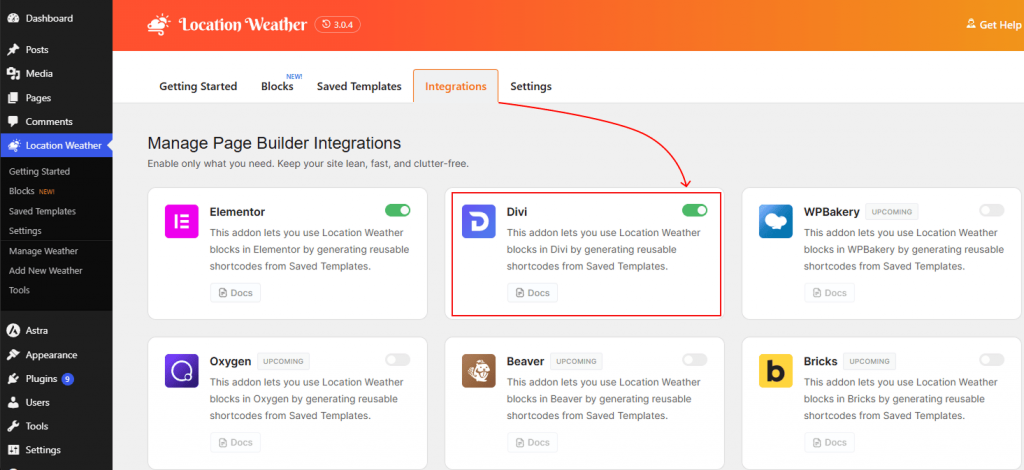
2. Copy the Shortcode
- Go to Location Weather → Saved Templates.
- Find the template you want to use and click the shortcode snippet in the Shortcode column (for example, [sp_lw_template id=”102″]) to copy it.
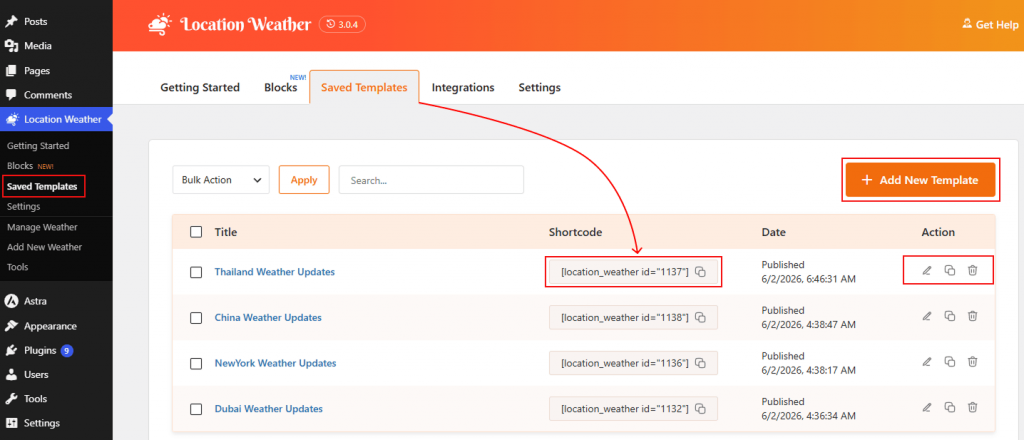
3. Open Divi Builder
Open the page where you want the weather block to appear and click Use Divi Builder, then click Edit with the Divi Builder.
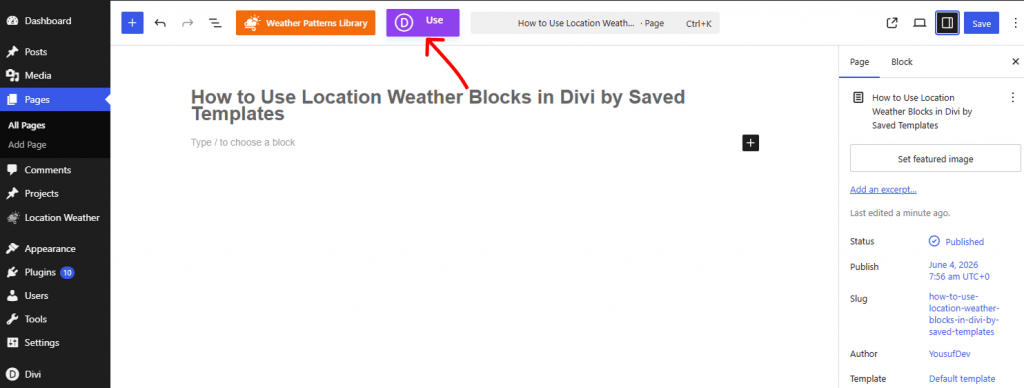
4. Insert Row and Module
- Click the green (+) icon to Insert Row and select your preferred column layout.
- Then, click the grey (+) icon to Insert Module, search for Text or Code, and select the native Code module.
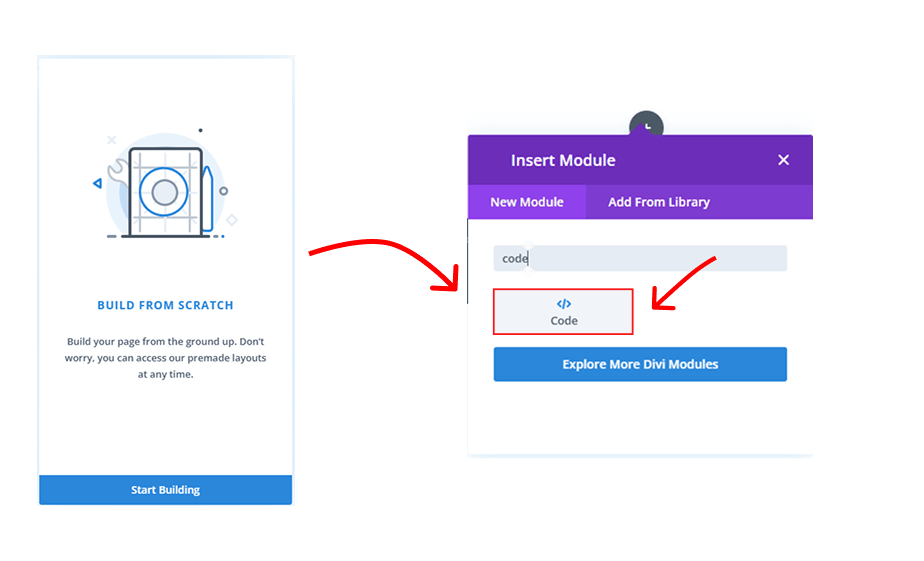
5. Paste and Publish
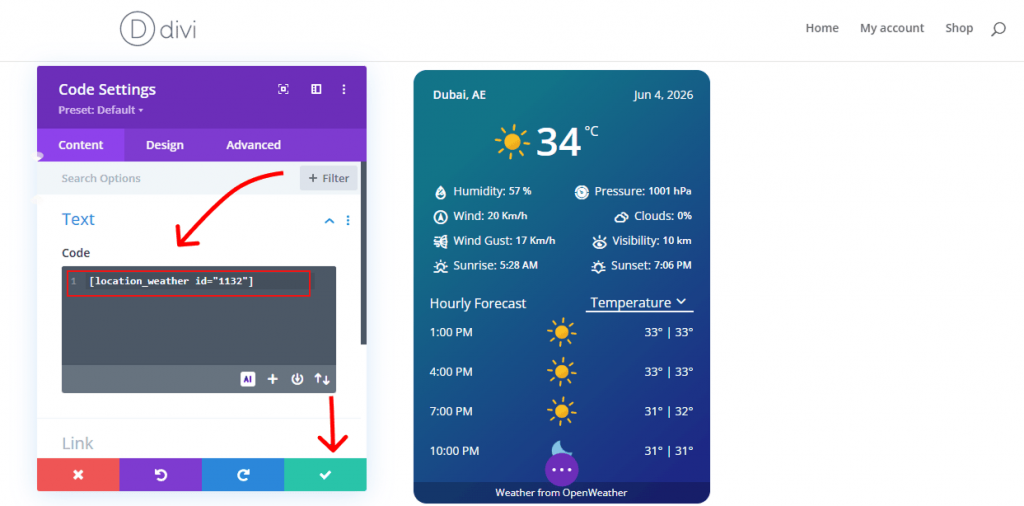
- In the Code Settings panel, paste your copied shortcode into the Code text box.
- Click the green ✓ checkmark to apply — your fully styled weather block will instantly appear in the canvas.
- Click Publish (bottom right) to save your changes.
Tip: After publishing, view the page on the frontend to confirm the weather block displays correctly. If the shortcode appears as plain text instead of the weather block, check that the Divi addon is enabled under Location Weather → Integrations.