


Beaver Builder is one of the most popular WordPress page builders. This guide shows you how to display your pre-built Location Weather Saved Templates inside any Beaver Builder page.
By enabling the Beaver Builder Page Builder Addon, you can place your ready-made weather blocks directly inside the Beaver Builder editor with the Location Weather module. No rebuilding from scratch: drag in the module, pick your Saved Template, and your fully styled weather block appears instantly.
You can complete this in 2 Simple Steps:
Step 1: Install Location Weather and create a Weather Block.
Step 2: Add your Saved Template inside Beaver Builder using the Location Weather module.
Step 1: Install Location Weather and Create a Weather Block
If you haven’t already, install and activate Location Weather, enter your licence key, and configure at least one weather block. Once saved, it will appear under Location Weather → Saved Templates with its own shortcode.
Step 2: Add Location Weather Saved Templates inside Beaver Builder
Follow these 5 steps to place your Saved Template into Beaver Builder.
1. Enable Beaver Builder Addon
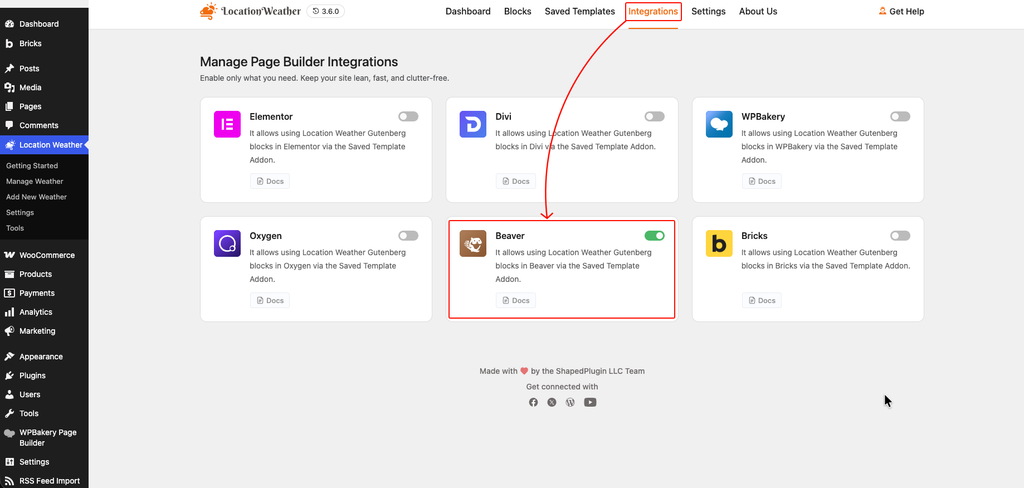
Go to your WordPress dashboard, navigate to Location Weather, and click the Integrations tab.
Under Manage Page Builder Integrations, find the Beaver card and switch its toggle to ON.
2. Find Your Saved Template
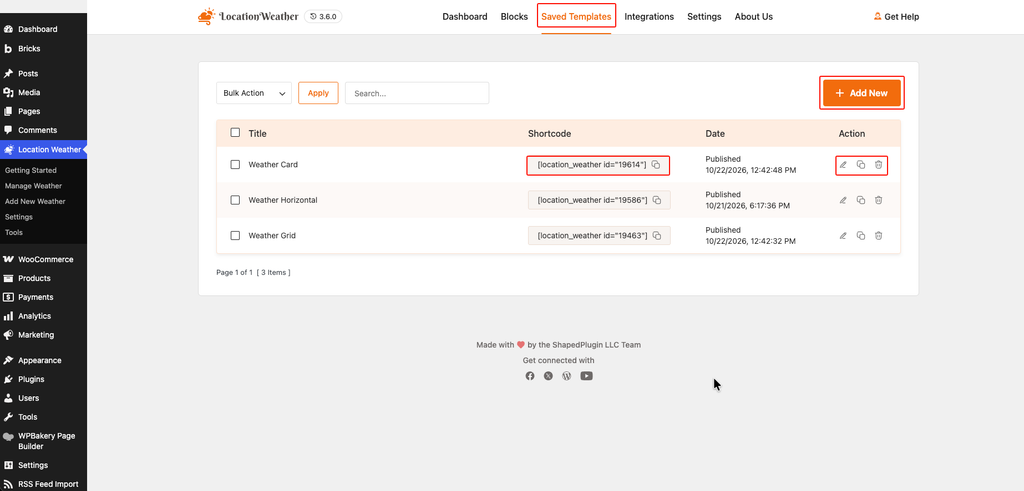
Go to Location Weather → Saved Templates.
Find the template you want to use and note its title. You’ll choose it by name inside Beaver Builder. Each template also has its own shortcode in the Shortcode column (for example, Weather Card).
Don’t have a template yet? Click + Add New to create one. You can manage existing templates with the icons in the Action column.
3. Open Beaver Builder
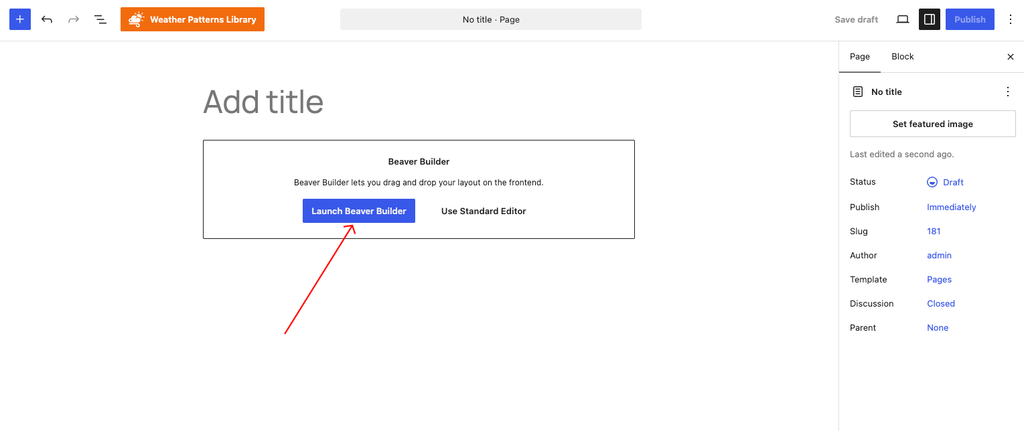
Open the page where you want the weather block to appear and click Launch Beaver Builder.
4. Place the Module
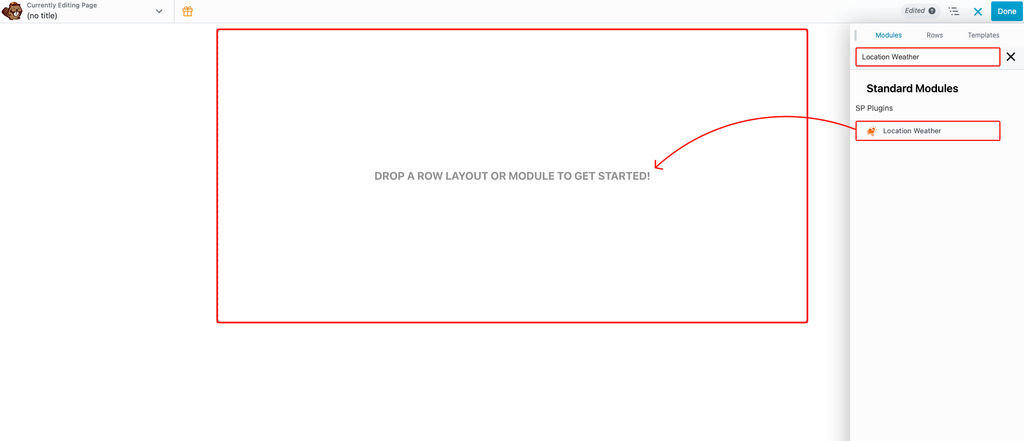
In the content panel on the right, stay on the Modules tab and type Location Weather into the search box. If the panel isn’t open, click the + icon in the top-right corner.
Under Standard Modules → SP Plugins, drag the Location Weather module onto the page, into the area marked Drop a row layout or module to get started!
5. Choose the Saved Template and Publish
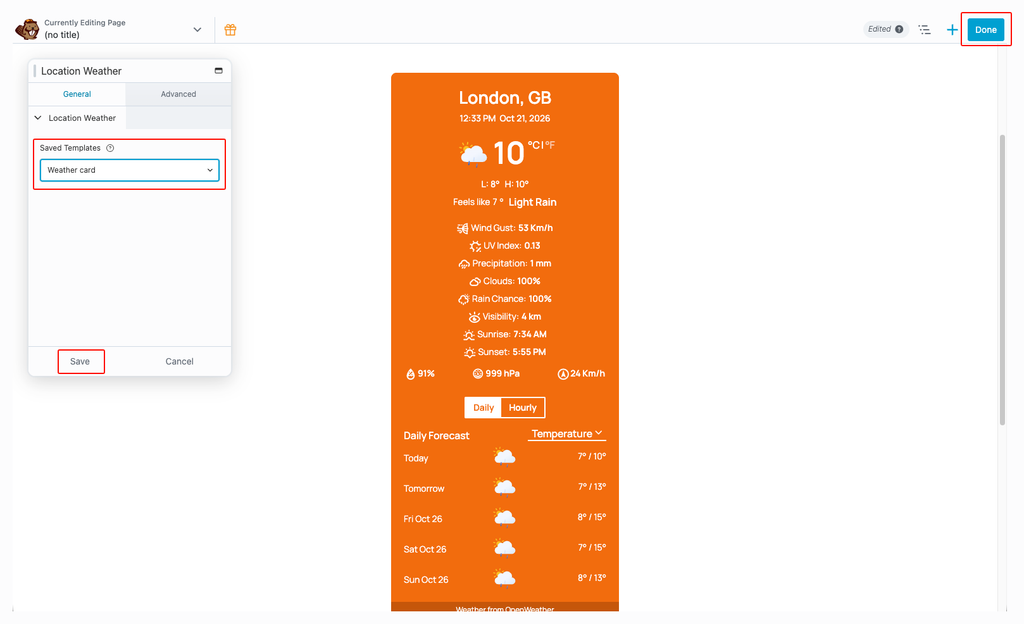
When the Location Weather module settings open, stay on the General tab and pick your template from the Saved Templates dropdown. Your fully styled weather block appears instantly in the canvas.
Click Save at the bottom of the module settings.
Click Done in the top-right corner, then click Publish to save the page.
Tip: After publishing, open the page on the frontend to confirm the weather block is rendering correctly. If the Location Weather module doesn’t appear in the Modules panel, check that the Beaver toggle is ON under Location Weather → Integrations.