


The Saved Templates feature allows you to create a weather layout once and reuse it across multiple pages or posts, helping you save time and keep a consistent design across your website. Instead of rebuilding weather displays from scratch for every new page, you can create a template once, customize it anytime, and reuse it anywhere on your website or on popular page builders.
How to Enable & Use Saved Templates in Location Weather
Watch this video tutorial to see how the Saved Templates feature works.
Get started with Saved Templates:
Follow these steps to create a weather template using the saved templates:
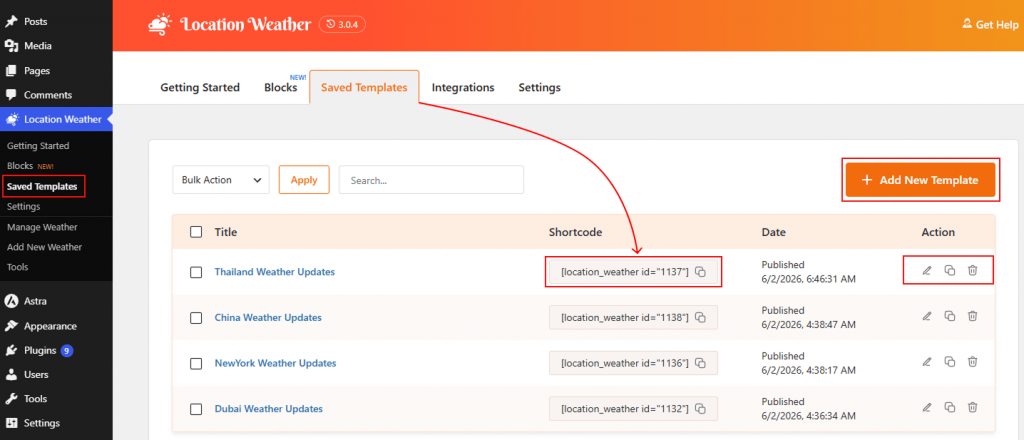
- Navigate to the Location Weather menu from your WordPress dashboard sidebar.
- Go to the Blocks section.
- Right next to the Blocks panel, you will find the dedicated Saved Templates panel.
- From this panel, you can Add New, Edit, Delete and Duplicate your templates whenever needed.
How to Create a New Weather Template using the Saved Template:
Build your reusable weather template library by following these steps:
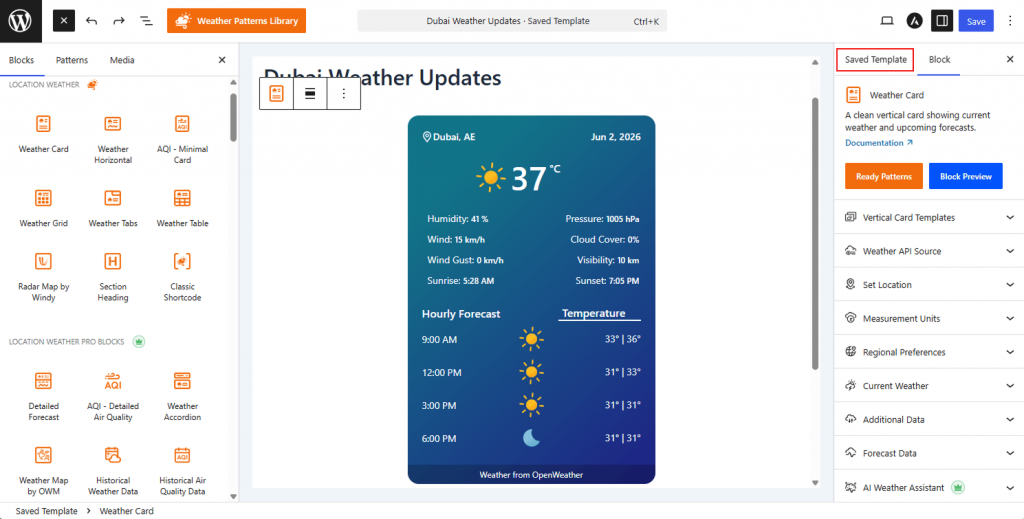
Create a New Template:
- From your WordPress Dashboard, navigate to Location Weather > Saved Templates.
- Click the Add New button to open the Gutenberg Editor.
Build Your Weather Saved Template:
- Use the Ready Patterns Library or select your preferred Weather Blocks to create your desired layout.
- Customize the weather display, styling, and settings according to your needs.
- Give your template a clear name (for example, “City Forecast Layout” or “Weekly Weather Dashboard”) so you can identify it easily later.
- Once your design is complete, click Publish. Your template is now saved and ready to use.
How to Reuse Your Saved Templates:
After saving a template, you can insert it into any page or post:
- Go to Location Weather > Saved Templates from your WordPress Dashboard.
- Copy the Shortcode from the Saved Templates list.
- Create a new page (Pages > Add New) or open an existing page.
- In the Gutenberg Editor, search for the Shortcode block and paste the copied shortcode.
- Click Publish or Preview to see your reusable weather template live on your page.
That’s it.
Note: If you’re using the Classic version of Location Weather, learn how to display your Weather Templates using Shortcode in the Gutenberg editor.