


The Sun & Moon Times block provides precise and reliable astronomical information, including sunrise, sunset, moonrise, and moon phases. It’s perfect for photographers, outdoor planners, and astronomy enthusiasts who want to track key celestial events directly from their WordPress site in a simple, well-organized layout.
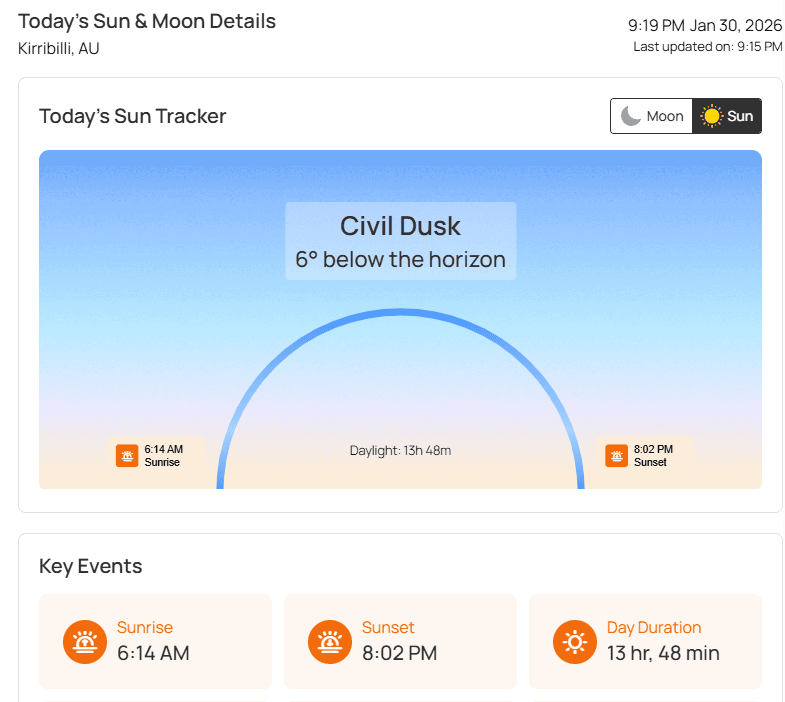
Sun & Moon Times – Key Features:
- Precise Sunrise & Sunset: Provide accurate sunrise and sunset timings for any location.
- Comprehensive Moon Data: Display moonrise, moonset, and current moon phases.
- Critical Celestial Events: Highlight essential events, including golden hour and solar noon.
- Multi-Day Forecast: Offer sun and moon timings for upcoming days for advanced planning.
- Interactive Visual Tracker: Track Sun & Moon times to visualize sun and moon positions clearly.
How to Create the Sun & Moon Times Block:
- Open the WordPress page or post you wish to edit.
- Click the (+) button to add a new block and search for “Sun & Moon Times”.
- Click the block to insert it.
- In the Block Settings sidebar, select your Weather API Source.
- Set your desired Location and choose a Template that fits your design.
- Once you have configured the style, click Publish or Update.
Let us explore the Sun & Moon Times block Settings:
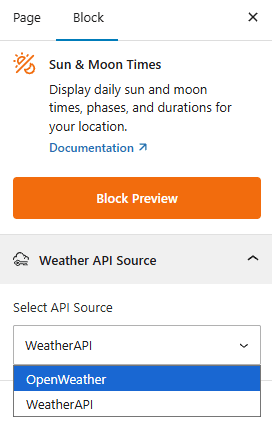
Weather API Source:
This section allows you to select the data provider for your air quality information. Select your data provider (e.g., OpenWeather or WeatherAPI) to ensure accurate solar and lunar calculations for any coordinate on Earth.
Sun & Moon Templates: General
From this panel, you can choose the Sun & Moon Time templates and configure them as needed.
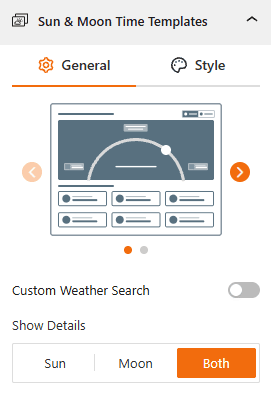
- Sun & Template Selection: Choose from stylish, pre-designed Horizontal 2 templates.
- Custom Weather Search: Use this toggle to enable a front-end weather search bar, allowing users to look up sun & moon phase for different locations.
- Show Details: Set which time you want to show Sun, Moon, or both.
Style Sun & Moon Times Templates:
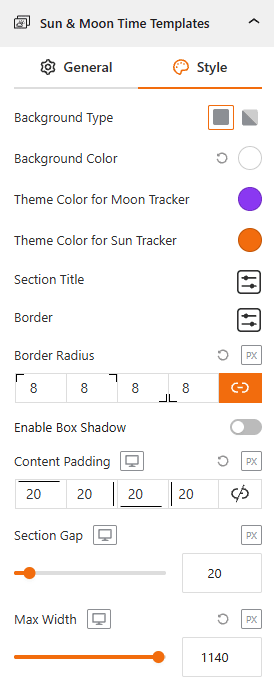
From this style panel, you will be able to add style to the Sun & Moon Times Template Typography and set spacing as you need.
- Override Specific with Global: Enable or disable it to set global font and color settings from here.
- Font Family: Select a custom font for the celestial metrics.
- Tracker Theme Color: Choose the Sun & Moon tracker theme color (e.g., golden yellows for the sun or soft whites for the moon) from here.
- Background Type & Color: Choose a background style for the Sun & Moon (Solid, or Gradient) & set a color from here.
- Section Title: Configure the section title color & other settings from here.
- Border & Radius: Customize the border style and set a border radius to create modern, rounded corners.
- Show/Hide Box Shadow: Use the toggle to enable or disable the box shadow from here.
- Section Gap & Max Width: Adjust the section gap between the Sun & Moon times & set the Max Width from here.
- Padding: Adjust the content padding to ensure it aligns perfectly with your surrounding content.
Sun & Moon Times Tracker:
From this style panel, you will be able to show/hide the Sun & Moon Tracker according to your preferences.
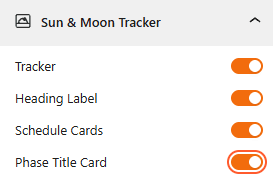
- Show/Hide Tracker: Use the toggle to enable or disable the Mon & Sun Times Tracker from here.
- Show/Hide Heading Label: Use the toggle to enable or disable the Mon & Sun Times heading label from here.
- Show/Hide Schedule Cards: Use the toggle to enable or disable Mon & Sun Times schedule cards from here.
- Show/Hide Phase Title Card: Use the toggle to enable or disable the Mon & Sun Times phase title from here.
Key Sun & Moon Events: General
From this style panel, you will be able to show/hide the Key Sun & Moon Events as needed.
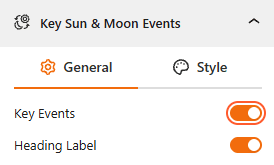
- Show/Hide Key Events: Use the toggle to enable or disable Mon & Sun key events from here.
- Sun & Moon Events Types: Set which types of events you want to show, such as Moon Phase, Moonrise & Moonset, Sunrise & Sunset, Solar Noon, Golden Hour, and more.
Style Key Sun & Moon Events:
From this style panel, you can add style to the Key Sun & Moon Events as you wish.
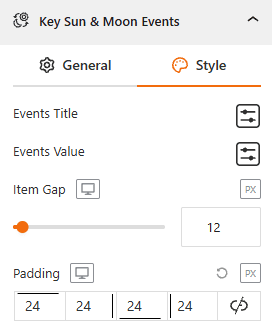
- Events Title: Configure events title color & typography from here.
- Events Value: Configure events title color & typography from here.
- Item Gap: Set the events item gap from here.
- Padding: Adjust the inner spacing to ensure perfect fits with the layout.
Key Sun & Moon Phases Timeline: General
From this style panel, you will be able to show/hide the Key Sun & Moon Phases Timeline as you wish.
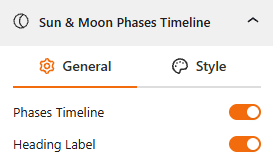
- Show/Hide Phases Timeline: Use this toggle to enable/disable Mon & Sun Phases Timeline from here.
- Show/Hide Heading Label: Use this toggle to enable/disable the Mon & Sun Phases Heading Label from here.
Style Key Sun & Moon Phases Timeline:
From this style panel, you can add style to the Key Sun & Moon Phases Timeline Typography and set spacing as you need.
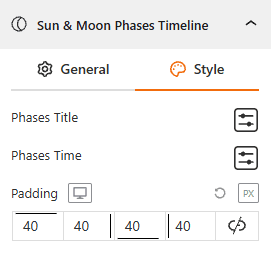
- Phases Title: Configure Phases title color & typography from here.
- Phases Time: Configure Phases time color & typography from here.
- Padding: Adjust the inner spacing to ensure perfect fits with the layout.
Sun & Moon Times Forecast: General
From this panel, you can set sun & moon times forecast to show or hide, and style as you want.
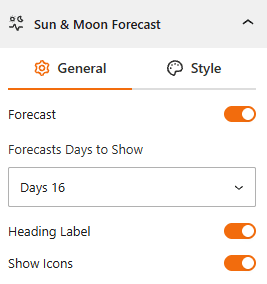
- Show/Hide Sun & Moon Forecast: Use this toggle to enable or disable the Sun & Moon forecast display.
- Forecast Days to Show: Select the length of the forecast period from the dropdown menu (e.g., you can set upto 16 Days).
- Heading Label: Toggle this to show or hide the title of the forecast.
- Show Icons: Enable this to display visual icons representing solar and lunar states.
Style Sun & Moon Times Forecast:
From this style panel, you will be able to add style to the Forecast Typography and set spacing as you need.
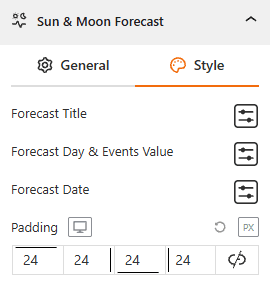
- Forecast Title: Adjust the typography and color of the forecast heading.
- Forecast Day & Events Value: Customize the Forecast Day and Events Value from here.
- Forecast Date: Add style to the date labels displayed within the forecast list.
- Padding: Set the internal spacing to ensure perfect fits with the layout.
Advanced Settings:
This section allows you to control the visibility of the block across different device types. You can choose to show or hide the block on desktops, tablets, or mobile devices to optimize the user experience for each screen size. For more details, visit this link.