


The Historical Air Quality Data weather block allows you to fetch and display past AQI records for any selected date and location. It helps you track long-term air quality trends, evaluate historical pollution levels, and gain meaningful insights into air health — all directly within your WordPress site.
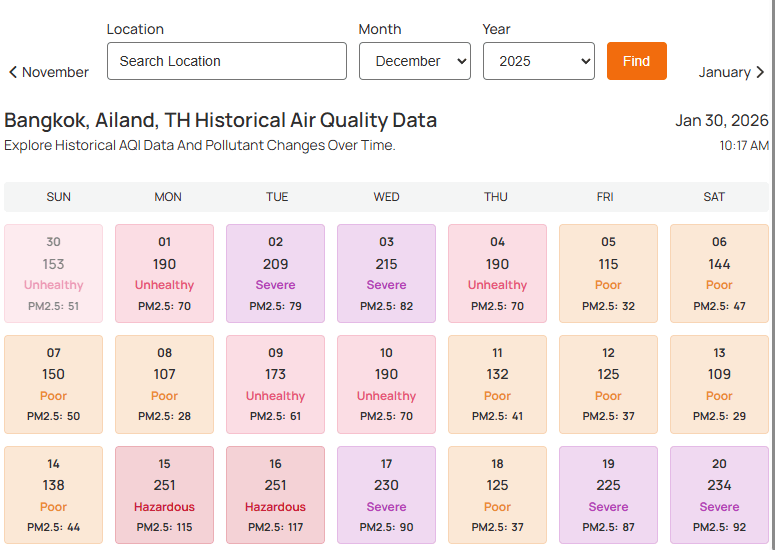
Historical Air Quality Data – Key Features:
- Calendar-Based Research: Display a comprehensive AQI data calendar for specific historical dates.
- Extensive Data Access: Fetch historical air quality records dating back to November 2022, depending on the API plan.
- Pollutant Breakdown: View detailed metrics for specific pollutants like $PM_{2.5}$, $PM_{10}$, $NO_2$, and $O_3$.
- Flexible Display Modes: Show detailed weather data in a stylish Popup or Drawer to the users.
How to Create the Historical Air Quality Data Block
- Navigate to the WordPress page or post you wish to edit.
- Click the (+) button to add a new block and search for “Historical Air Quality Data”.
- Click the block to add it to your page.
- Use the Block Settings sidebar to select your desired location and historical date.
- Check the Block Preview to see the data update in real-time.
- Once you have customized the style, click Publish or Update.
Let us explore the Historical Air Quality Data Settings:
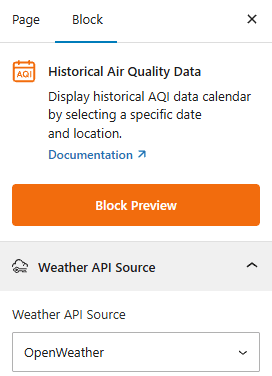
Weather API Source:
This section allows you to select the Weather API provider for your information. Select your data provider (e.g., OpenWeather or Weather API) to fetch the historical air quality records.
Historical AQI Templates: General
From this panel, you can configure the template heading and width as you want.
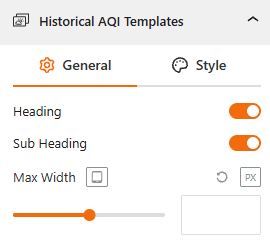
- Show/Hide Heading & Sub Heading: Use this toggle enable Heading and Sub Heading
- Max Width: Set the maximum width for the block to align with your content area.
Style Historical AQI Templates:
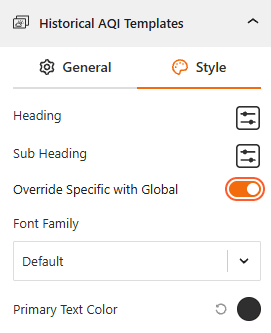
- Style Heading & Sub Heading: Set the heading & sub-heading color and typography from here.
- Override Specific with Global: Toggle this to choose between global site styles and block-specific customizations.
- Typography: Dedicated panel to choose a custom font family as you need.
- Color: Set the primary text color from here.
Location & Date Filter: General
From this panel, you can configure the functional behavior of the Location & Date filter.
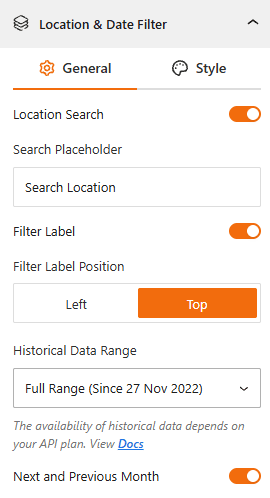
- Location Search: Toggle this ON to allow users to search by a specific city or region.
- Search Placeholder: Customize the text that appears inside the search bar (e.g., “Search Location” or “Enter a City”).
- Filter Label: Enable this to show a descriptive title for the filter. Set the position to the Left or at the Top of the input field.
- Historical Data Range: Choose the timeframe for the historical weather data you want show from the available range.
- Last 365 days.
- Last 2 years
- Last 3 Years
- Full Range (since 27 November 2022).
Note: The availability of historical data depends on your specific API Plan.
- Next and Previous Month: Turn this toggle ON to allow users to navigate the historical calendar month-by-month.
Style the Location & Date Filter:
From this panel, you can add style to the Location & Date search filter bar:
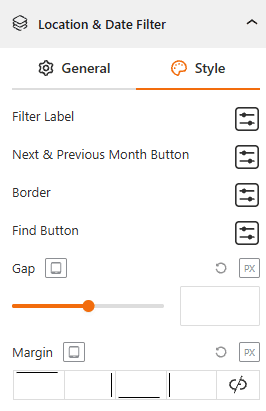
- Filter Label: Add typography, color, and size of the filter label from here.
- Next & Previous Month Icon & Button: Style Next & Previous button color & set the icon from here.
- Border: Define the border color, style, width, and radius to create modern, rounded corners.
- Find Button: Style the “Search” button’s background color, text, and hover effects.
- Gap: Set the distance between the search inputs, such as date, month, year, and button.
- Margin: Set the external spacing around the search bar.
AQI Details (Search Result): General
From the General panel, you can set specific AQI metrics to show or hide, and keep your search results as needed.
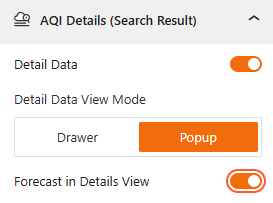
- Show/Hide Detail AQI Data: Toggle this to enable or disable showing detail AQI data from here.
- Detail Data View Mode: Select any of the data displaying mode such as Drawer or Pop-Up.
- Forecast in Details View: Enable this toggle to show/hide forecast in detailed view.
Attribution:
This section allows you to control the display of information in the block’s footer, such as the data update time and weather attribution. For more details, visit this link.
Advanced Settings:
This section allows you to control the visibility of the block across different device types. You can choose to show or hide the block on desktops, tablets, or mobile devices to optimize the user experience for each screen size. For more details, visit this link.