


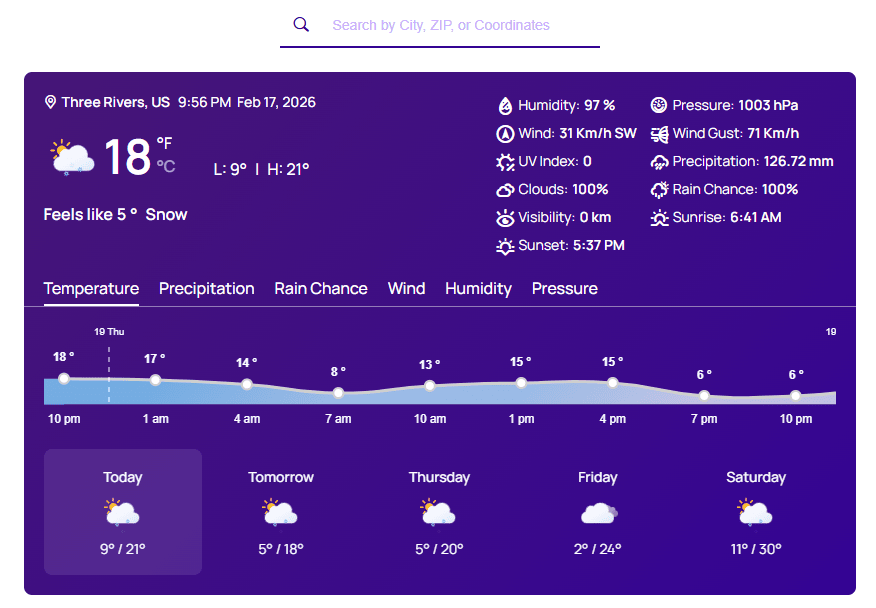
The Custom Weather Search is a child block designed to help your users search for any specific or custom weather updates or information for any location worldwide. It gives your visitors a more interactive experience, letting them get a personalized weather forecast directly from your website.
Custom Weather Search: General
From this panel, you will be able to choose multiple search bar presets, configure, and add style as you wish.
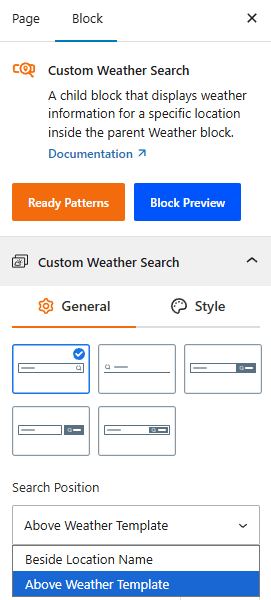
- Layouts: Choose from a variety of pre-designed search bar presets.
- Search Position: Select where the search bar will be displayed relative to the weather block, such as “Beside Location Name” and “Above Weather Template”.
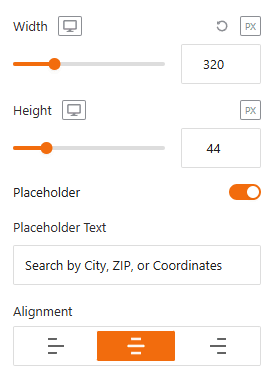
- Width and Height: Adjust the width and height of the search bar using sliders and input fields.
- Placeholder: Enable a placeholder text for the search bar.
- Placeholder Text: Customize the text that appears in the search bar when it is empty, such as “Search by City, ZIP, or Coordinates”.
- Alignment: Align the search bar to the left, center, or right.
Custom Weather Search: Style
This section allows you to customize the appearance of the weather search bar’s input field, focusing on its typography, color, and spacing. This ensures the search bar integrates seamlessly with your website’s design.
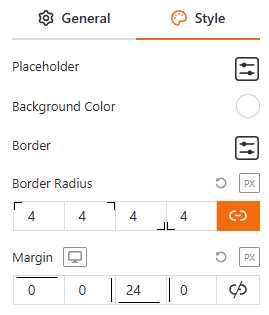
- Custom Weather Search Field: Provides a settings icon to open additional style options for the search input field.
- Typography: Offers a full range of typographic controls, including font family, size, style, and formatting.
- Color: Allows you to set the color of the text within the search field.
- Background Color: Enables you to set the background color of the search field.
- Padding: Adjusts the inner spacing of the search field.
- Margin: Adjusts the outer spacing around the search field.
Search Button: General
From this section, you can easily customize the appearance of the search button within the custom weather search bar. You can easily adjust the icon and size to match your site’s design.
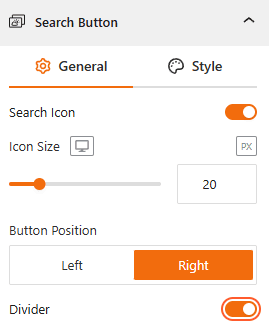
- Search Icon: Use this toggle to enable or disable the search icon within the search button.
- Icon Size: Adjust the size of the search icon in pixels (px) from here.
- Button Position: Set the search button’s position relative to the search field, either on the Left or Right.
- Divider: Use this toggle to enable a vertical line that visually separates the search button from the search input field.
Search Button: Style
From this panel, you can easily control the appearance of the search button within the custom weather search bar. You can customize its look for both normal and hover states to create a seamless user experience.
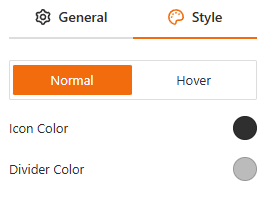
- Normal/Hover Tabs: Switch between styling options for the default (Normal) and mouse-over (Hover) states of the button.
- Icon Color: Adjust the color of the search icon inside the button.
- Divider Color: Change the color of the vertical line that separates the button from the search input field.