



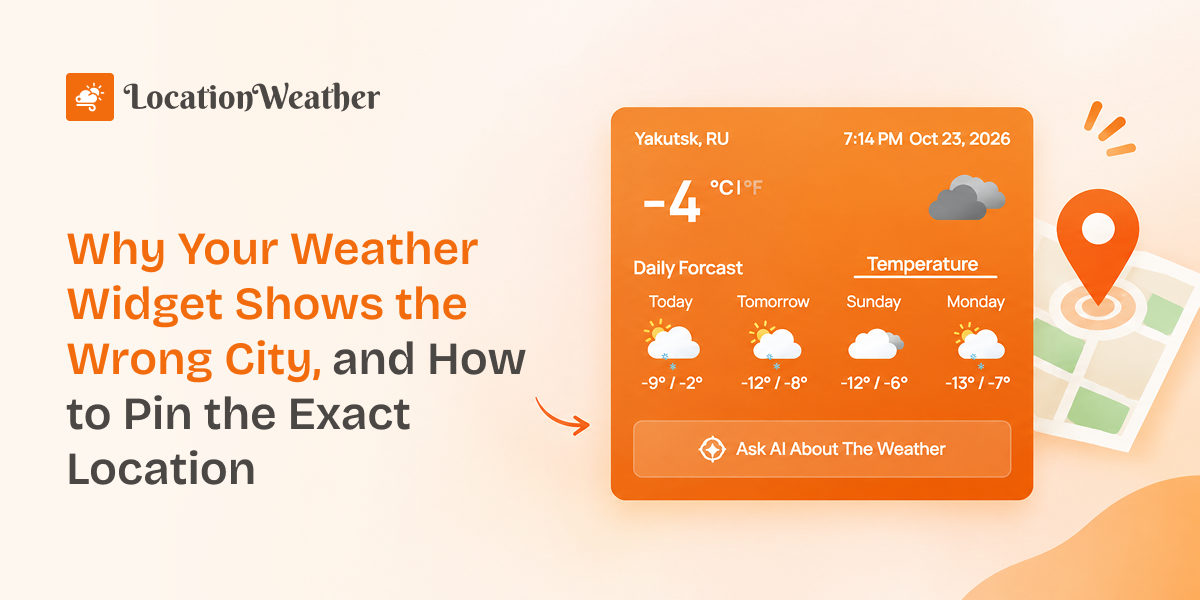
Picture this. You run a guesthouse in London, Ontario, Canada. You add a weather widget to your homepage, type “London,” and publish. A week later a guest emails you: “Your site says it’s raining in London, but it’s sunny here.” Your widget has been showing London, England the whole time.
This happens far more often than people think. The good news is that it’s easy to fix once you know why it happens. This guide explains the common causes, compares the four ways to set a location, and walks you through pinning the exact spot.
Quick answer: A weather widget usually shows the wrong city because the location is set by name, and many places share the same name. The weather service then picks its best guess. The fix is to set the location by latitude and longitude, which pins the exact spot, and then type the place name you want visitors to see.
Why Does My Weather Widget Show the Wrong City?
Most wrong-city problems come from one of six causes. The first one is by far the most common.
1. The city name matches more than one place
There’s a London in England and one in Canada. There’s a Paris in France and one in Texas. The US alone has dozens of towns called Springfield. When you type only a city name, the weather service returns the first match it finds, and that’s often the biggest or best-known place, not yours.
Adding a country code helps, such as “London, CA” instead of “London.” But it doesn’t help when two places share a name inside the same country.
2. Name-based lookups are no longer maintained
OpenWeather, one of the most widely used weather data sources, has marked its city name and city ID lookups as deprecated. They still work, but they no longer get bug fixes or updates. OpenWeather recommends coordinates instead, calling them the most accurate way to specify any location.
3. Latitude and longitude are swapped or in the wrong format
Coordinates fix most problems, but only if they’re entered correctly. Two mistakes are common:
4. A ZIP code without a country
ZIP and postal codes repeat across countries. Without a country code, the lookup often defaults to the United States. A postal code meant for Germany can quietly turn into a US town.
5. Visitor auto-detect picked up the wrong spot
Some widgets detect each visitor’s location through their browser. This is great on phones with GPS. On desktops, location is often estimated from the network, which can be miles off. VPNs make it worse. And if the visitor blocks location access, the widget falls back to its default city.
6. The widget shows a nearby place name
Sometimes the weather is correct, but the label looks wrong. When you use coordinates, the weather service names the nearest place in its database. That might be a suburb, a neighborhood, or a weather station name instead of your city. The data is right; only the label is off.
What Are the Ways to Set a Location in a Weather Widget?
Most weather widgets let you set a location in one of four ways. Coordinates are the most accurate. City names are the easiest, but also the most likely to go wrong.
| Method | Example | Accuracy | Best for | Watch out for |
|---|---|---|---|---|
| Latitude and longitude | 42.9849,-81.2453 | Highest | Any site that needs one exact spot | Latitude must come first; use decimals |
| City ID | 2643743 | High, if the ID is correct | Older setups that already use IDs | Hard to look up; deprecated by OpenWeather |
| ZIP or postal code | N6A,CA | Medium | US and UK sites, local businesses | Always add the country code |
| City name | London, CA | Lowest | Quick tests and large, unique cities | Duplicate names; deprecated by OpenWeather |
If your widget supports coordinates, use them. Keep city names for quick tests or cities with truly unique names.
How Do You Pin the Exact Location With Coordinates?
Find the latitude and longitude of your spot, enter them as two decimal numbers separated by a comma, and set your widget to look up weather by coordinates. It takes about two minutes.
Four decimal places is plenty. It pins a spot to within roughly 11 meters, which is far more precise than any weather forecast needs.
How Do You Make the Widget Show the Right Location Name?
Use a custom location name. Pin the weather with coordinates, then type the name you want visitors to see, such as “London, Ontario” or “Riverside Wedding Barn.”
This matters because the coordinates and the label come from two different places. The coordinates decide which weather you get. The label is whatever place name the weather service finds nearest to those coordinates. If that’s a suburb or a weather station, your widget might show a neighborhood name while displaying perfectly correct London weather.
A custom name keeps the accurate data and fixes the label. It’s also a chance to use a friendlier name, like your venue or resort, instead of a postal-style place name.
Should You Pin One Location, Auto-Detect, or Let Visitors Search?
Pin one location when your site is about one place. Use auto-detect or a search box when your visitors are spread across many places.
| Approach | Best for | Trade-off |
|---|---|---|
| Pinned coordinates | Hotels, venues, farms, local businesses, schools | Everyone sees the same location |
| Visitor auto-detect | News sites, national brands, apps with a local angle | Needs browser permission; desktop accuracy varies |
| Location search box | Travel sites, directories, tour operators | Visitors must type a place themselves |
With auto-detect, always set a sensible default with coordinates. That’s what visitors see if they block location access. If your site uses a full-page cache, also test in a private browser window to confirm each visitor really sees their own local weather.
Quick Checklist: Is Your Weather Widget Showing the Right Place?
Run through this list whenever a widget shows the wrong city or odd temperatures.
Frequently Asked Questions
Q. Why does my weather widget show a different city than the one I typed?
The city name you typed probably matches more than one place. The weather service returns its first match, which is often a larger city with the same name. Switch to coordinates to fix it.
Q. What is the most accurate way to set a location for weather data?
Latitude and longitude. Coordinates point to one exact spot, so there’s no guessing. OpenWeather recommends coordinates over city names, city IDs, and ZIP codes.
Q. Why does my widget show a suburb or station name instead of my city?
When you use coordinates, the weather service labels the result with the nearest place in its database. The weather data is still correct. Set a custom location name to show the name you want.
Q. Which comes first, latitude or longitude?
Latitude comes first in most weather widgets and in Google Maps. Latitude runs from -90 to 90. Longitude runs from -180 to 180. If your first number is outside -90 to 90, the two are almost certainly swapped.
Q. Why is my ZIP code showing weather from another country?
Without a country code, many weather services assume a US ZIP code. Add the country code after a comma, such as 10115,DE for Berlin.
Q. Why does auto-detect show the wrong location on my computer?
Desktop browsers often estimate location from your internet connection, not GPS. That can be miles off, and a VPN can place you in another country entirely. Phones are usually much more accurate.
How to set this up with Location Weather
If you use WordPress, Location Weather handles everything in this guide inside the block settings. New weather blocks already default to coordinates, so you start with the most accurate method.
In Location Weather:
If you enter coordinates in the wrong format, the block shows a clear error message instead of quietly showing the wrong place.
In Location Weather, you also get:



Leave a Reply