



You design a beautiful weather widget, then switch to the page builder your client uses, and suddenly you’re back to pasting shortcodes into text modules and hoping the preview looks right.
If you build WordPress sites for clients, you know the feeling.
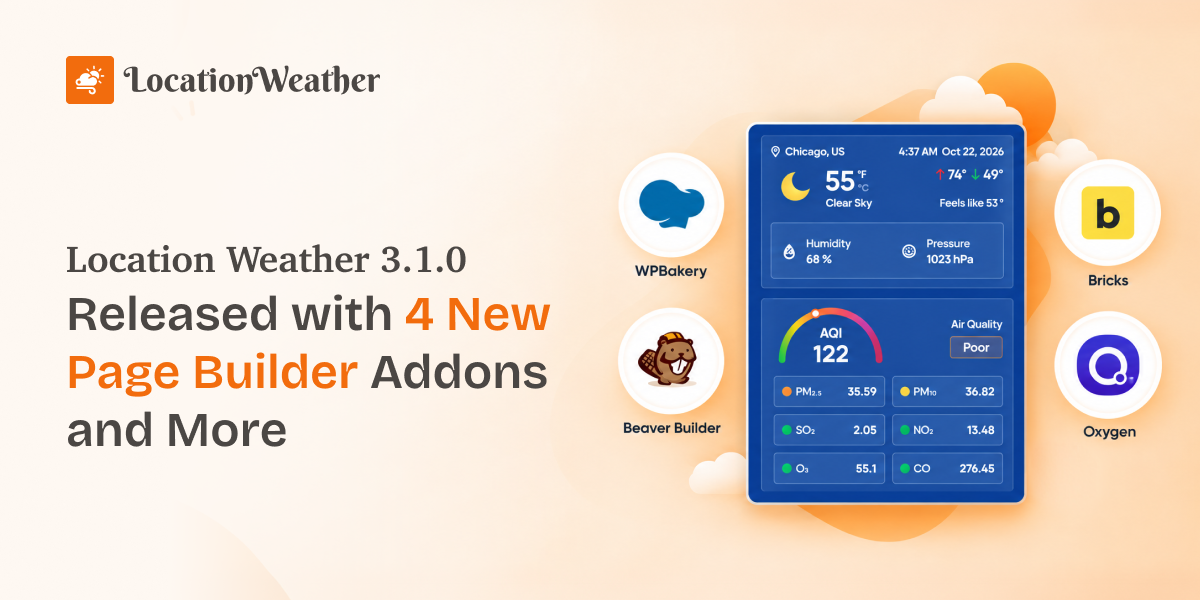
Location Weather 3.1.0 fixes that for the popular builders out there. Elementor and Divi already had their own Location Weather addons. Now WPBakery, Beaver Builder, Bricks, and Oxygen users get the same drag-and-drop experience.
Here’s everything that’s new, what it means for your workflow, and how to start using it today.
What’s New in Location Weather 3.1.0?
Location Weather 3.1.0 brings several new features and a handful of quality-of-life improvements. Here’s the full picture at a glance.
|
Feature |
Type |
Who benefits most |
|---|---|---|
|
WPBakery Page Builder addon |
New |
Agencies maintaining older client sites |
|
Beaver Builder addon |
New |
Freelancers and agencies on Beaver Builder |
|
Bricks Builder addon |
New |
Developers building fast, modern sites |
|
Oxygen Builder addon |
New |
Designers who want full layout control |
|
Classic shortcode management in Saved Templates |
New |
Long-time users with classic shortcodes |
|
Tools tab for export and import |
New |
Anyone moving widgets between sites |
|
Live chat support in the dashboard |
New |
Everyone who needs a quick answer |
|
Cleaner dashboard navigation |
Improved |
All users |
|
Dismissible upgrade notice |
Improved |
Free users |
|
Simpler shortcode block in the editor |
Improved |
Gutenberg users |
|
Pattern Library hidden for restricted roles |
Improved |
Multi-author sites |
|
WordPress 7.1.3 compatibility |
Tested |
All users |
Location Weather Now Support New Page Builders
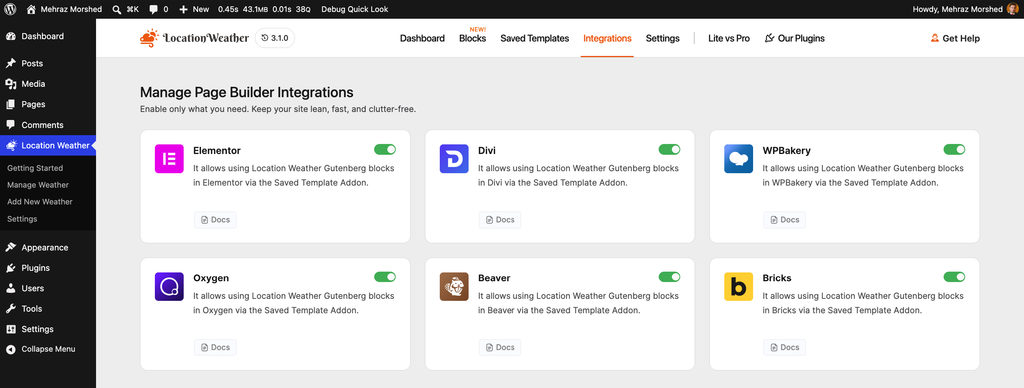
Location Weather 3.1.0 works natively with six page builders: Elementor, Divi, WPBakery, Beaver Builder, Bricks, and Oxygen. The last four are new in this release. Each addon adds a “Location Weather” element to the builder, and you simply pick a saved template from a dropdown.
This matters because a saved template is built once in the block editor, with all its colors, layout, and weather data. The addon just places it. Change the template later, and every page that uses it updates on its own.
WPBakery Page Builder
WPBakery still powers a huge number of sites, especially ones built with premium themes years ago. If you maintain those sites, you no longer need a raw text block with a shortcode. Look for the Location Weather element in the element picker, under its own Location Weather category.
Beaver Builder
Beaver Builder users get a Location Weather module in the SP Plugins group of the module panel. Drag it into any row, choose your saved template, and you’re done.
Bricks Builder
Bricks is popular with developers who care about speed and clean output. The new Location Weather element shows up in Bricks’ basic elements. Until you choose a template, it shows a clear “Please Select a Saved Template” message, so you never end up with an empty box.
Oxygen Builder
Oxygen users can add the Location Weather element and select a saved template in its settings. This addon is built on Oxygen’s classic element API, so it targets the Oxygen 4.x line.
How to Add a Weather Template With a Page Builder Addon?
- Build your weather widget in Location Weather → Saved Templates using the block editor and its ready-made patterns.
- Open Location Weather → Integrations and make sure your builder is switched on. All integrations are on by default.
- Edit your page in WPBakery, Beaver Builder, Bricks, or Oxygen.
- Add the Location Weather element or module to your layout.
- Pick your saved template from the dropdown and publish.
Each builder has its own step-by-step guide in the Location Weather documentation, linked straight from the Integrations screen.
Export and Import Weather Shortcodes
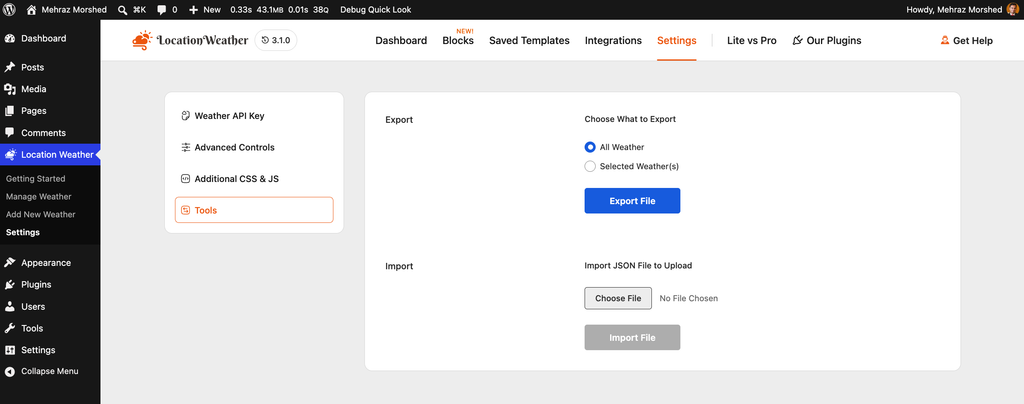
Go to Location Weather → Settings → Tools. Export and import used to sit on their own separate Tools page in the admin menu. In 3.1.0 they move into a new Tools tab inside Settings, with a cleaner, modern layout.
To export:
- Under Choose What to Export, select All Weather, or select Selected Weather(s) and pick the ones you want.
- Click Export File. A .json file downloads to your computer.
To import:
- Drag your .json file into the upload area, or click Choose File.
- Click Import File. When it’s done, you’re taken straight to Saved Templates to see your imported widgets.
This is handy when you move from a staging site to a live site, or when you reuse the same weather setup for several clients.
Manage Classic Weather Shortcodes From Saved Templates
Yes. In 3.1.0, the Saved Templates page lists your block editor templates and your older classic shortcodes together in one table. Before this, classic shortcodes lived on a separate screen, so you had to jump back and forth.
Each row now has an Editor Type badge that reads either “Block Editor” or “Classic”. That way you always know what you’re looking at. The shortcode column also shows the right shortcode format for each type, ready to copy with one click.
For classic shortcodes, you can now do the following without leaving the page:
One thing to know: deleting a classic shortcode from this table removes it permanently. It does not go to the trash first, so double-check before you click.
This is a big time-saver if you’ve used Location Weather for years and have a mix of old and new widgets across your site.
Live Chat Support Inside the Plugin
Yes. Version 3.1.0 adds a live chat widget to the Location Weather dashboard. If you get stuck setting up an API key, choosing a pattern, or connecting a page builder, you can message the support team without opening a new tab or filling out a ticket form.
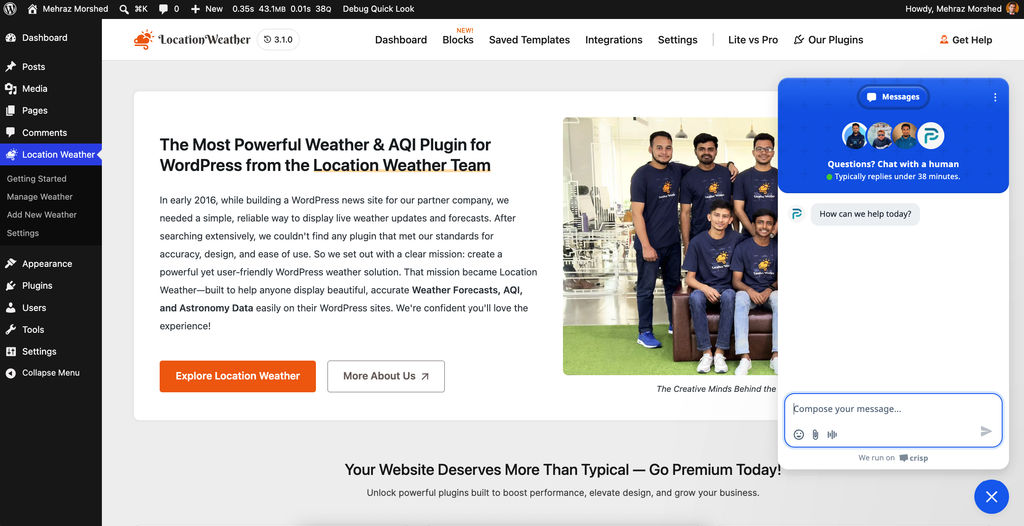
The chat only loads on the plugin’s own dashboard screens, not on your public site.
What Else Improved in 3.1.0?
The smaller changes add up to a smoother day-to-day experience:
Update to Location Weather 3.1.0
Update from Dashboard → Updates or the Plugins page in WordPress, like any other plugin. Your existing widgets, shortcodes, and settings stay as they are.
For a smooth update, we suggest these steps:
Frequently Asked Questions
Q. Is Location Weather 3.1.0 a free update?
Yes. Version 3.1.0 is available for the free version on WordPress.org, and it includes the four new page builder addons.
Q. Do I still need shortcodes with the new page builder addons?
No. The addons let you pick a saved template from a dropdown inside the builder. Shortcodes still work everywhere if you prefer them.
Q. Will my old classic shortcodes keep working?
Yes. Classic shortcodes work exactly as before. You can now also see and manage them on the Saved Templates page.
Q. What is a saved template in Location Weather?
A saved template is a reusable weather widget you design once in the block editor. You can then place it anywhere with a shortcode, a block, or a page builder addon.
Q. Can I turn off an integration I don’t use?
Yes. Go to Location Weather → Integrations and switch off any builder you don’t need.
Q. Does Location Weather work with Elementor and Divi too?
Yes. Elementor and Divi addons were added in earlier versions. With 3.1.0, Location Weather supports six page builders in total.
Q. Does Location Weather 3.1.0 work with WordPress 7.1?
Yes. It has been tested with WordPress 7.1.3.
Get Started
Location Weather 3.1.0 is about meeting you where you already work. Whether your clients run WPBakery, Beaver Builder, Bricks, Oxygen, Elementor, or Divi, you can now design a weather widget once and place it anywhere in a few clicks.
Update today and try the new addon for your favorite builder. If you want more templates, weather maps, AQI, and historical data, take a look at Location Weather Pro. And if anything feels unclear, the new live chat in your dashboard is one click away.



Leave a Reply