



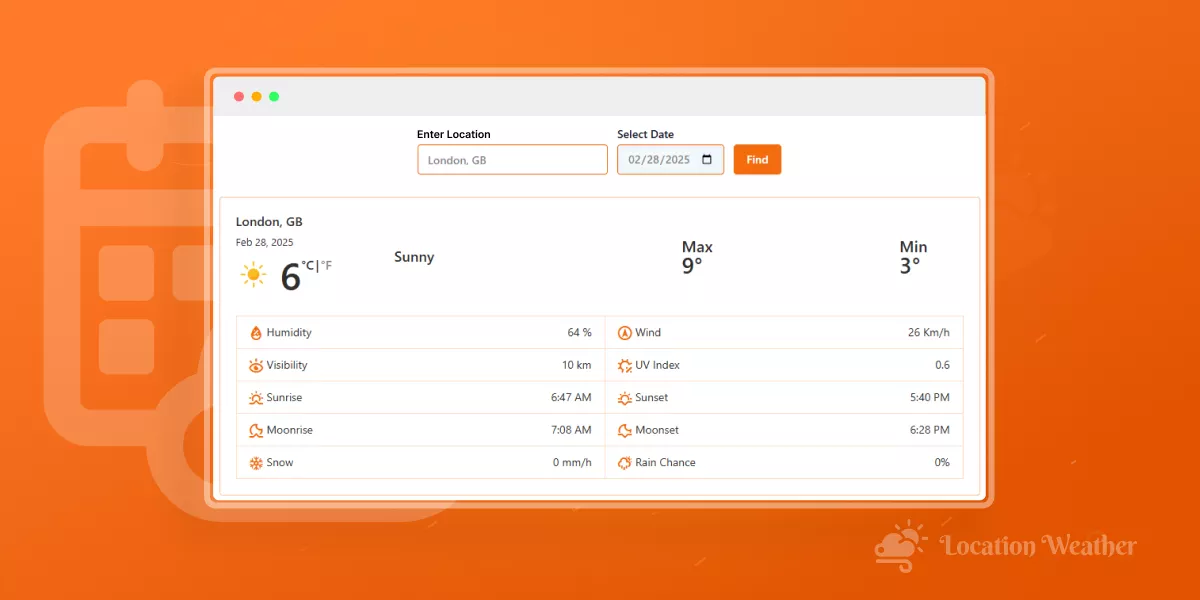
In this blog, I’ll show you how to provide past weather data in WordPress in four simple steps.
If you add the historical weather data showcase, your site visitors can search detailed weather data for any location and any date within the last 46 years. They can seamlessly check last week’s weather, last two weeks’ weather, even the weather on any day 46 years back.
Moreover, you can get it done within minutes without writing a single line of code.
Let’s get in.
4 Simple Steps to Show Weather History in WordPress
Follow the simple steps below to provide previous weather data in your WordPress website.
Step 1: Get Location Weather

Location Weather is the #1 weather forecast plugin for WordPress with the highest number of active installations, outstanding reviews, and top ratings in its category. It has been proudly featured on leading platforms such as WPBeginner, WP Engine, WPMU DEV, Elegant Themes, and HubSpot.
Users choose Location Weather for its powerful features, effortless customization, and quick human support.
Key Features:
- 60+ pre-designed weather layouts
- Past weather data for the last 46 years
- Detailed forecasts up to 16 days and 96 hours
- AQI, historical weather data, astronomy insights, interactive weather maps, and more
- Weather display by fixed location, visitor’s location, or custom search
- Location-based terminology with easy unit switching
- Dynamic background changes based on live weather conditions
- Support for image, video, or custom color backgrounds
- Beautiful animations and visual effects
- Full design control and customization options
Let’s install Location Weather, get an API, choose a template, customize, and publish in minutes without touching code.
Step 2: Collect a Weather API
To display weather data on your website, you’ll need a reliable Weather API. Follow the simple steps below to generate and connect your API key.
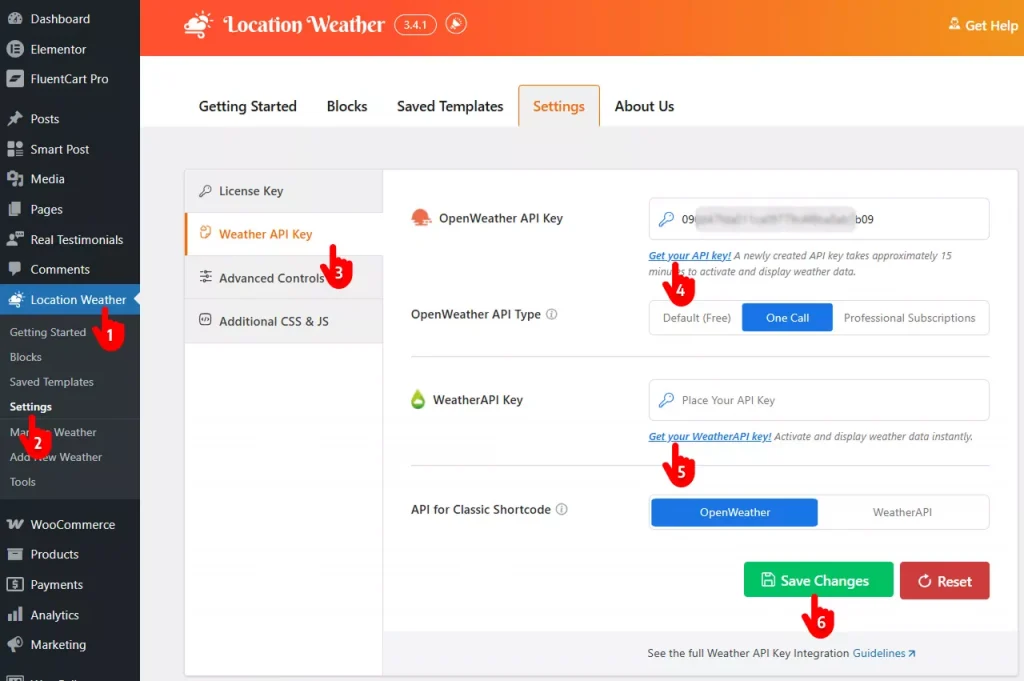
- First, go to Location Weather from your WordPress admin dashboard sidebar.
- Click on Settings under Location Weather.
- Navigate to the Weather API Key section.
- Click Get Your API Key. The OpenWeather API offers access to historical weather data going back up to 46 years. Collect your API key and paste it into the OpenWeather API Key field.
- Alternatively, you can use a WeatherAPI key, which provides historical data starting from 2010 onwards.
- Finally, click the Save Changes button to activate your API.
Step 3: Choose a Ready Pattern
Follow the simple steps below to choose a historical weather data template.
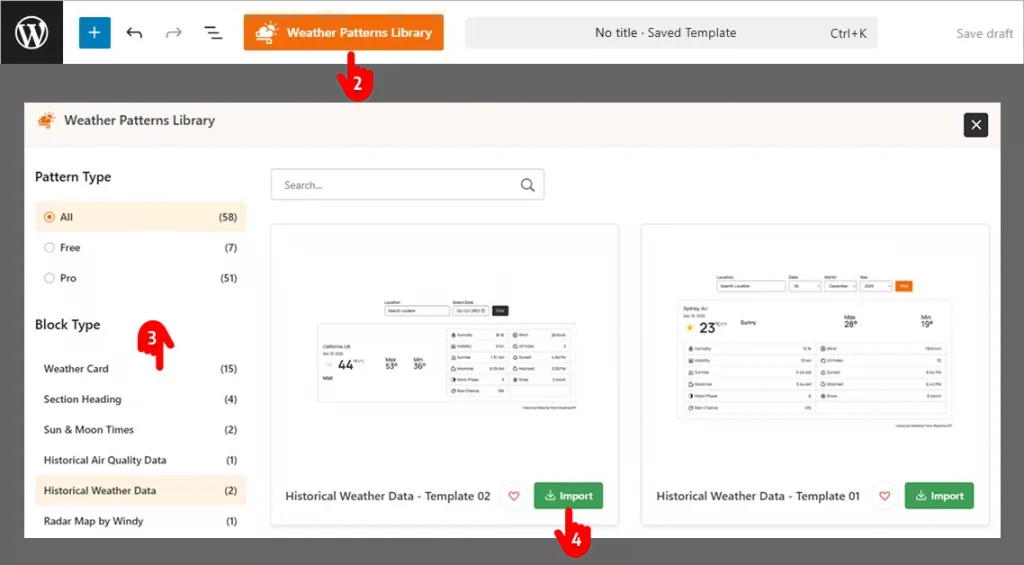
- First, navigate to the page or post where you want to display your Weather archive.
- Open the Weather Pattern Library.
- Find the Historical Weather Data in the list.
- Click Import to insert the selected weather pattern into your page.
Step 4: Customize & Publish
You’ve already imported your proffered historical wether data template. Now it’s time to make it yours applying your brand colors and necessary customizations. Don’t worry– Location Weather gives you complete customization control. Follow the simple steps below to tailor your past weather display exactly the way you want.
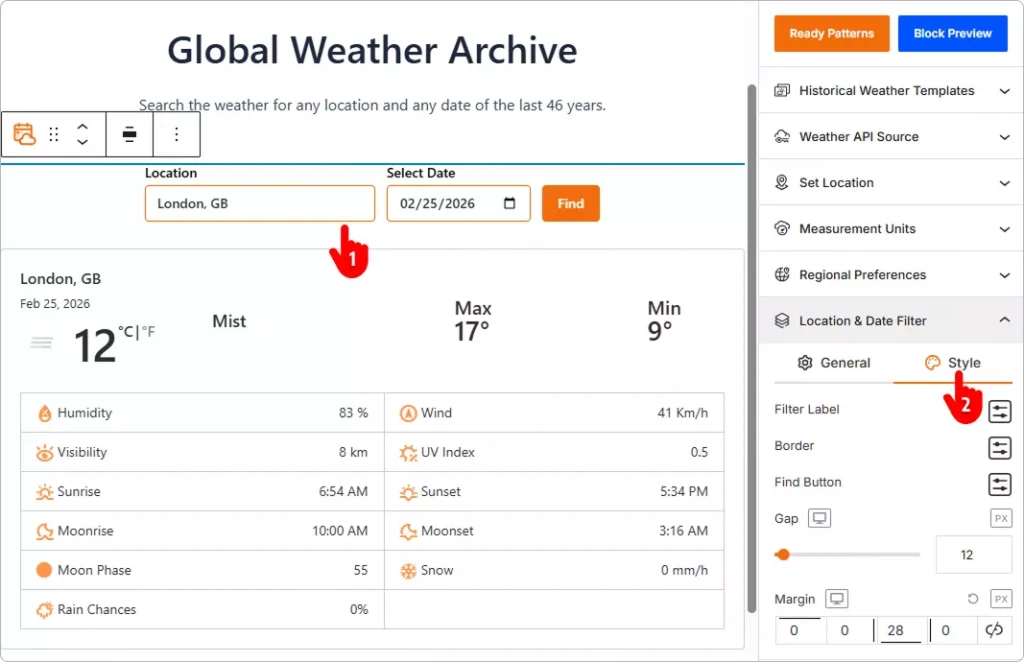
- Click on the element you want to customize, and the settings panel will appear in the right sidebar. For example, if you need to customize your location and date filters’ appearance click on it and go to the opened panel to customize.
- You can also navigate to the style tabs throught the panels as well. You will find the necessary design and customization controls in every panels. Feel free to explore and adjust them according to your needs and brand preferences.
- Once you’ve finished customizing, click the Publish or Update button to save your changes.
That’s all. Let’s see the result.
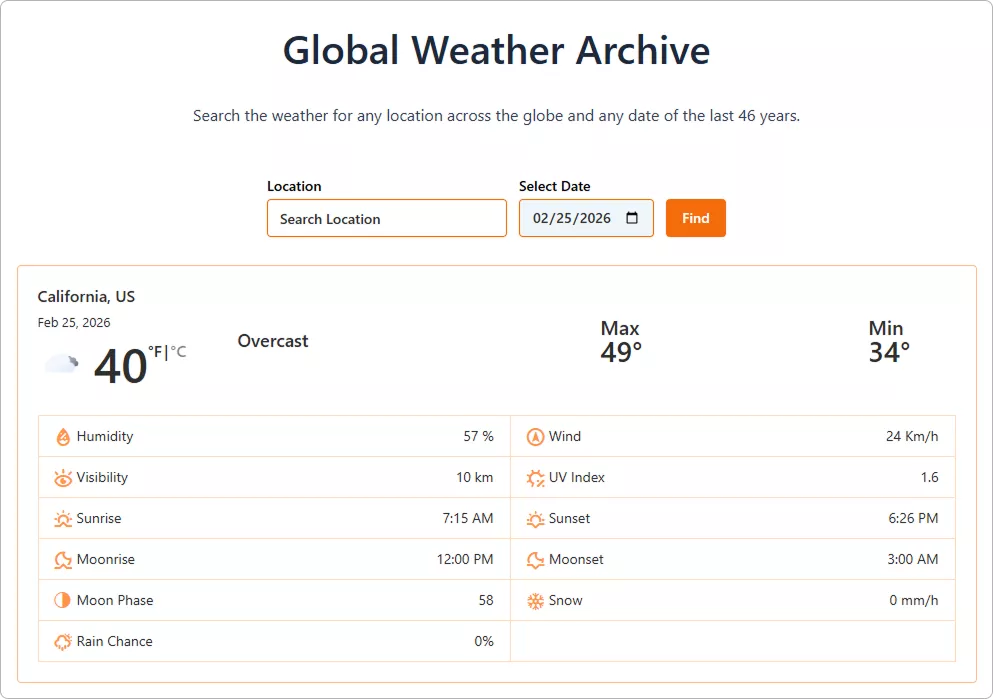
This is how a basic past weather data display will appear on your site. However, you can make it even better with your creative power and Location Weather’s robust features.
So, let’s add a beautiful & powerful past weather data showcase to your website today.


Leave a Reply