



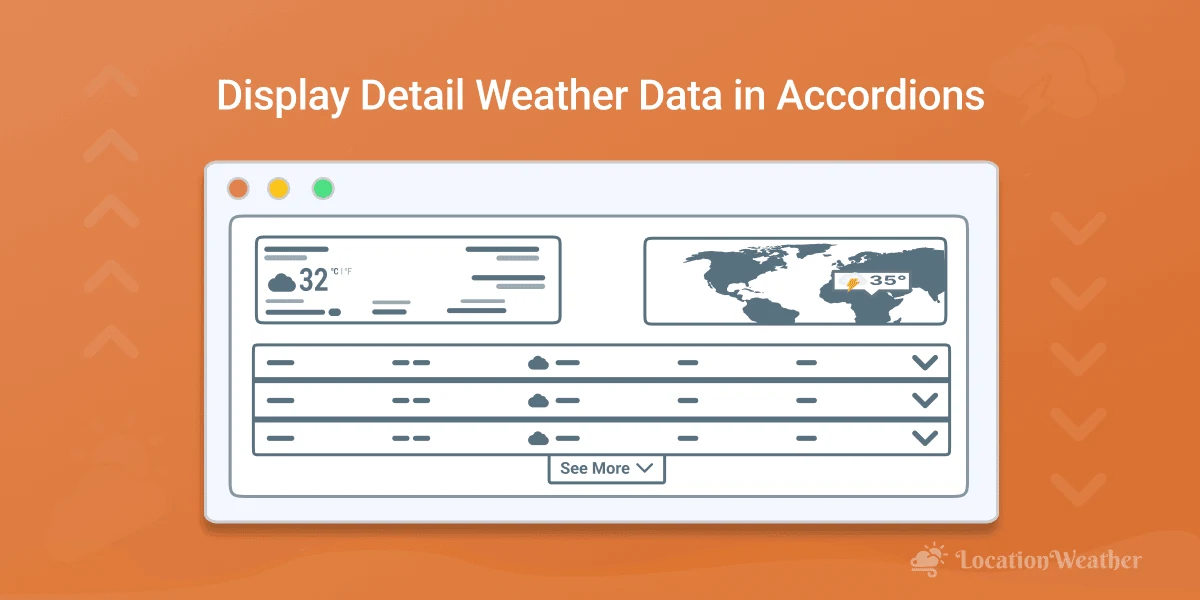
Do you want to display weather forecast data in a collapsible accordion on your WordPress website? If yes, this guide is for you.
Whether you run a real estate business, tourism, event page, or news site, showing real-time weather in a clear, interactive format keeps your content useful and engaging.
Instead of long or scattered layouts, you can use compact, collapsible templates like Weather Accordion to display daily or hourly weather updates and forecasts in an easy-to-navigate format, keeping your page organized and enhancing user experience.
In this guide, I’ll show you the step-by-step guide to create & display weather data in an accordion using Location Weather in minutes.
Let’s get started.
What is the Weather Accordion?
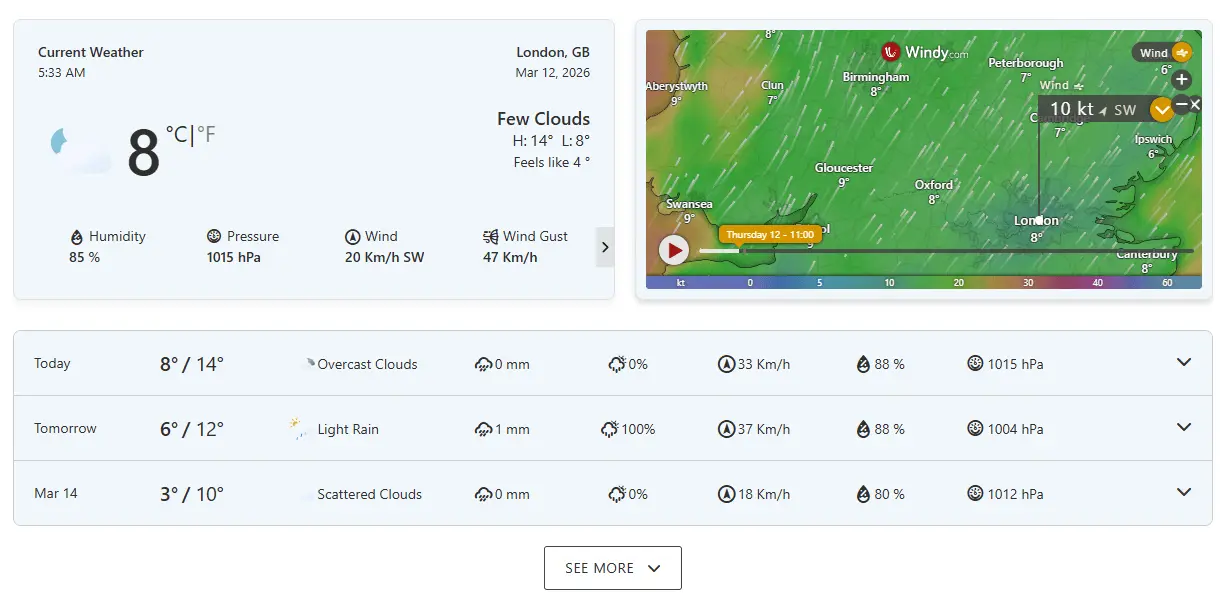
In Essence, the Weather Accordion displays Current Weather, Daily & Hourly forecasts, and Weather Maps in collapsible sections. It allows users to quickly view temperature, humidity, wind, AQI, sunrise/sunset, and alerts without scrolling through long tables while keeping the weather data interactive, organized, and user-friendly.
4 Simple Steps to Display Weather Data Accordion in WordPress
To display detailed weather forecast data in an accordion, firstly, you need to create a weather forecasting accordion template using a plugin like Location Weather. Follow the simple steps below to create a weather accordion template to display weather data on your WordPress website.
Step 1: Get Location Weather
Location Weather is the World’s Best Weather & Air Quality Plugin for WordPress, with the highest active installations, reviews, and ratings in its category. It has been featured on leading platforms such as WPBeginner, WP Engine, WPMU DEV, Elegant Themes, and HubSpot.
Over 20000 business owners love Location Weather for its powerful features, easy customization, and top-notch support.
Key Features:
- 60+ ready-to-use weather patterns library
- 17+ powerful & visual drag-and-drop weather blocks
- Dedicated Weather Accordion to display weather data in a collapsible format
- Daily/hourly weather forecasts in a collapsible pop-up or card
- AQI data, historical weather insights, astronomy information, interactive weather maps, and more
- Display weather by fixed location, visitor’s location, or custom weather search
- Location-based weather data with easy unit switching
- Dynamic backgrounds that change based on live weather conditions
- Support for weather-based image, video, or custom color backgrounds
- Beautiful animations and visual effects
- Full design control with flexible customization options
Let’s install Location Weather & activate, add an API key, choose a template, customize it, and publish your weather data accordion display in minutes without coding.
Step 2: Configure Weather API Key
We need a Weather API to display the weather data from OpenWeather or WeatherAPI.
Simply follow the steps below to get a free weather API key from OpenWeather and set it up in Location Weather.
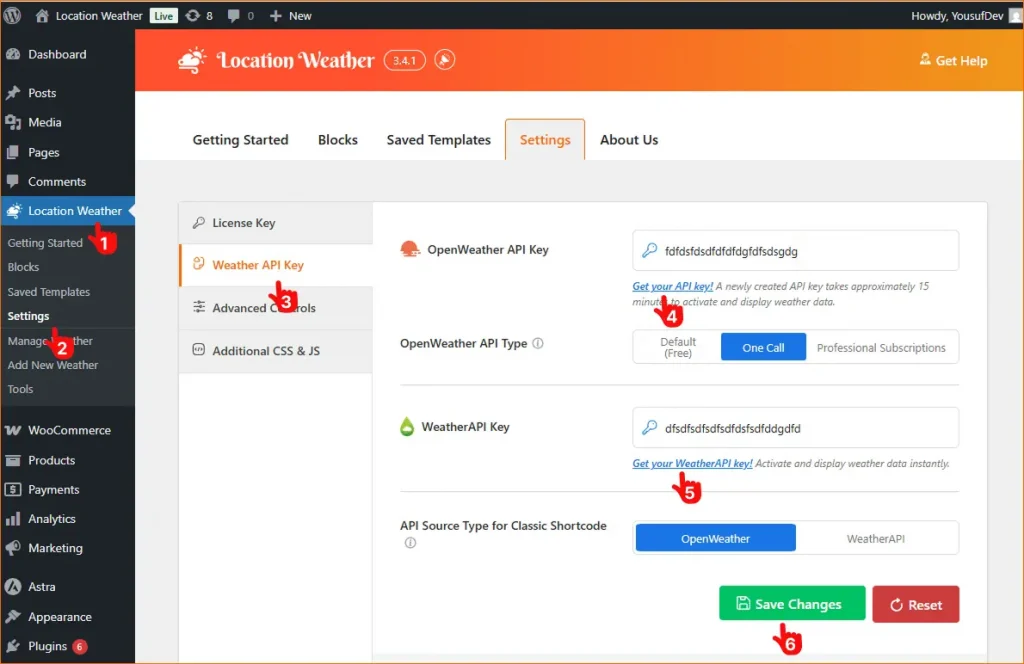
- First, click Location Weather in your WordPress admin sidebar.
- Click the Settings panel of Location Weather.
- Navigate to the Weather API Key section.
- Click Get your API key to visit the signup page of OpenWeather. Create an account with your email, generate the API key, copy it, and paste it into the OpenWeather API Key field.
- You can also add an API key from WeatherAPI using the same process.
- Finally, click Save Changes to activate the API.
You can also check out the full guidelines about the Weather API key plans and setup here.
Step 3: Create a Weather Accordion Template
Now, it’s time to create and display your weather data in an accordion. And, you can do it very nicely and professionally with the Visual Weather Accordion block. It allows you to display weather data within collapsible accordion sections.
With its 4 pre-designed beautiful templates, you can choose one, and present current weather with OpenWeather or Windy Radar Map, while showcasing daily & hourly forecasts, or other data points in an organized, expandable format, saving space and improving user experience.
Simply follow the steps below or read the guides to create your first weather accordion block in minutes.
You can create a weather accordion in two simple ways.
- Choosing a ready-made accordion pattern from the Rich Patterns Library
- Directly choosing an accordion block in the Gutenberg Editor.
Choose a ready accordion pattern from the Rich Patterns Library:
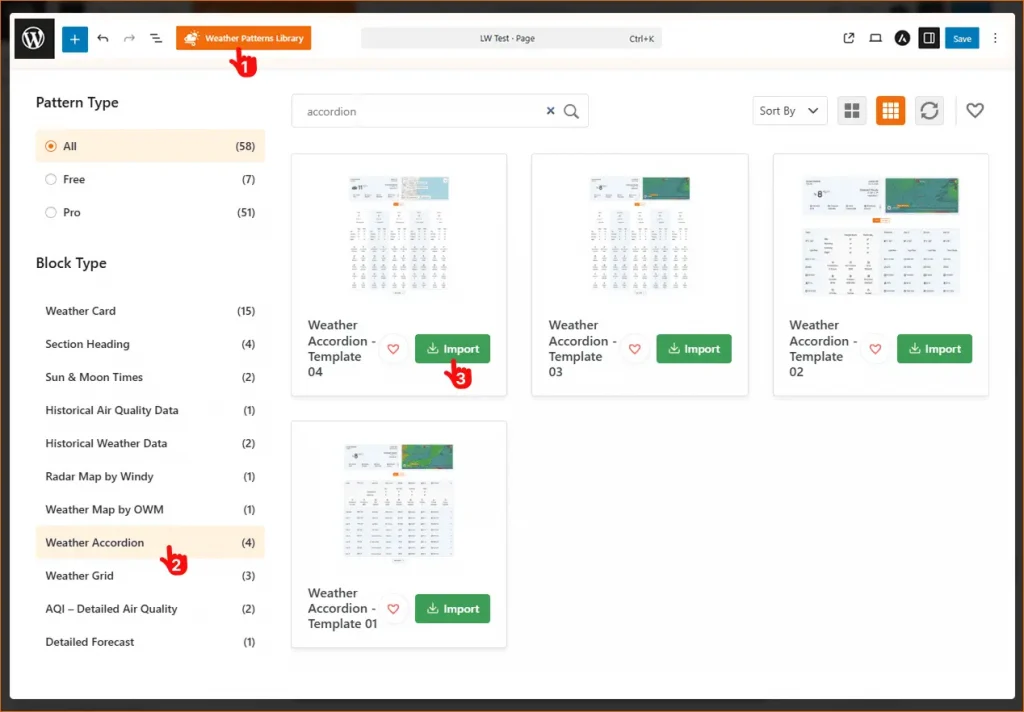
- Go to any WordPress page or post and open the Weather Pattern Library to import ready accordion patterns.
- Search for or find the Weather Accordion patterns.
- Click Import.
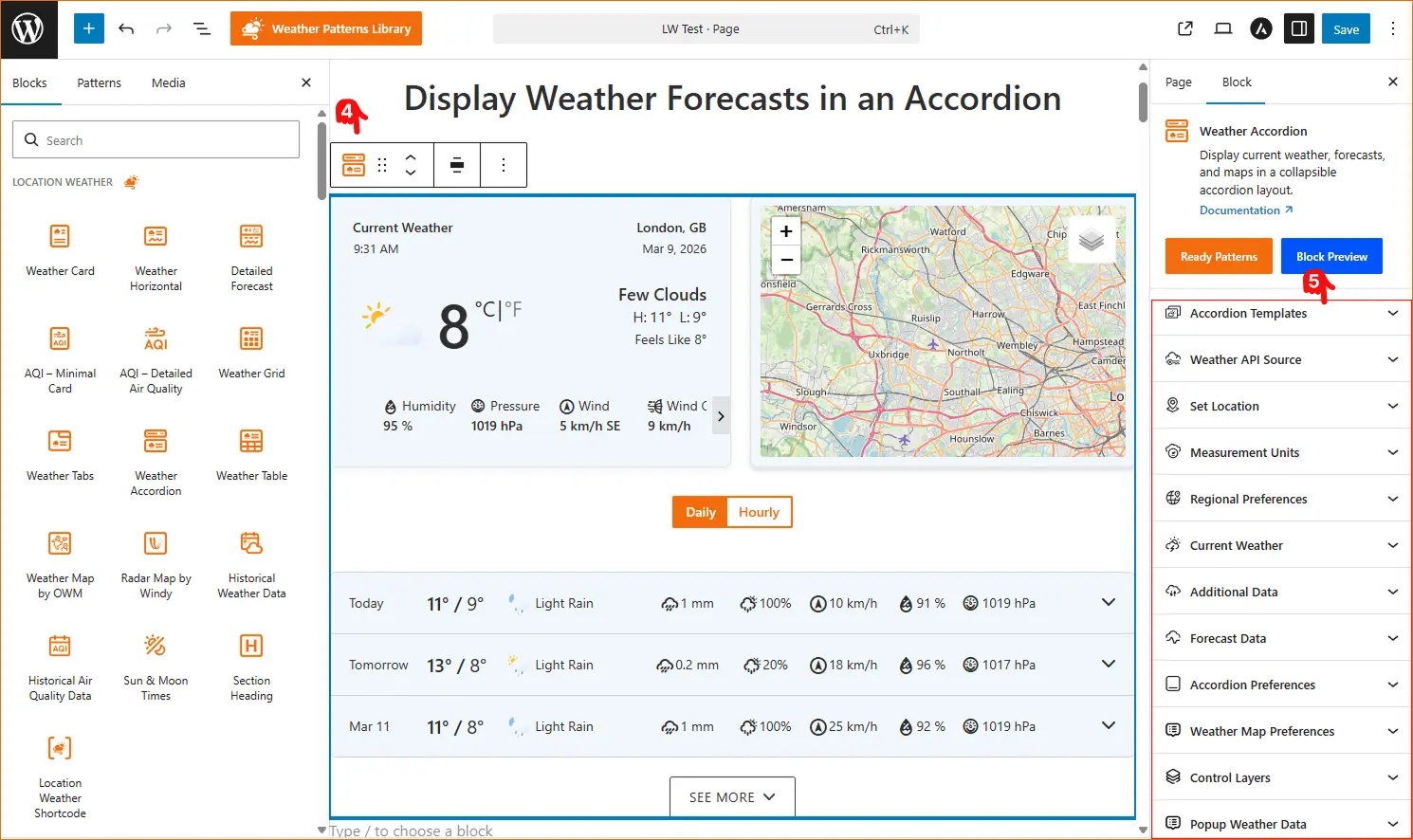
4. Find a whole ready-made accordion template.
5. Find the dedicated panels to customize as you wish.
Find the weather accordion block in the Gutenberg Editor
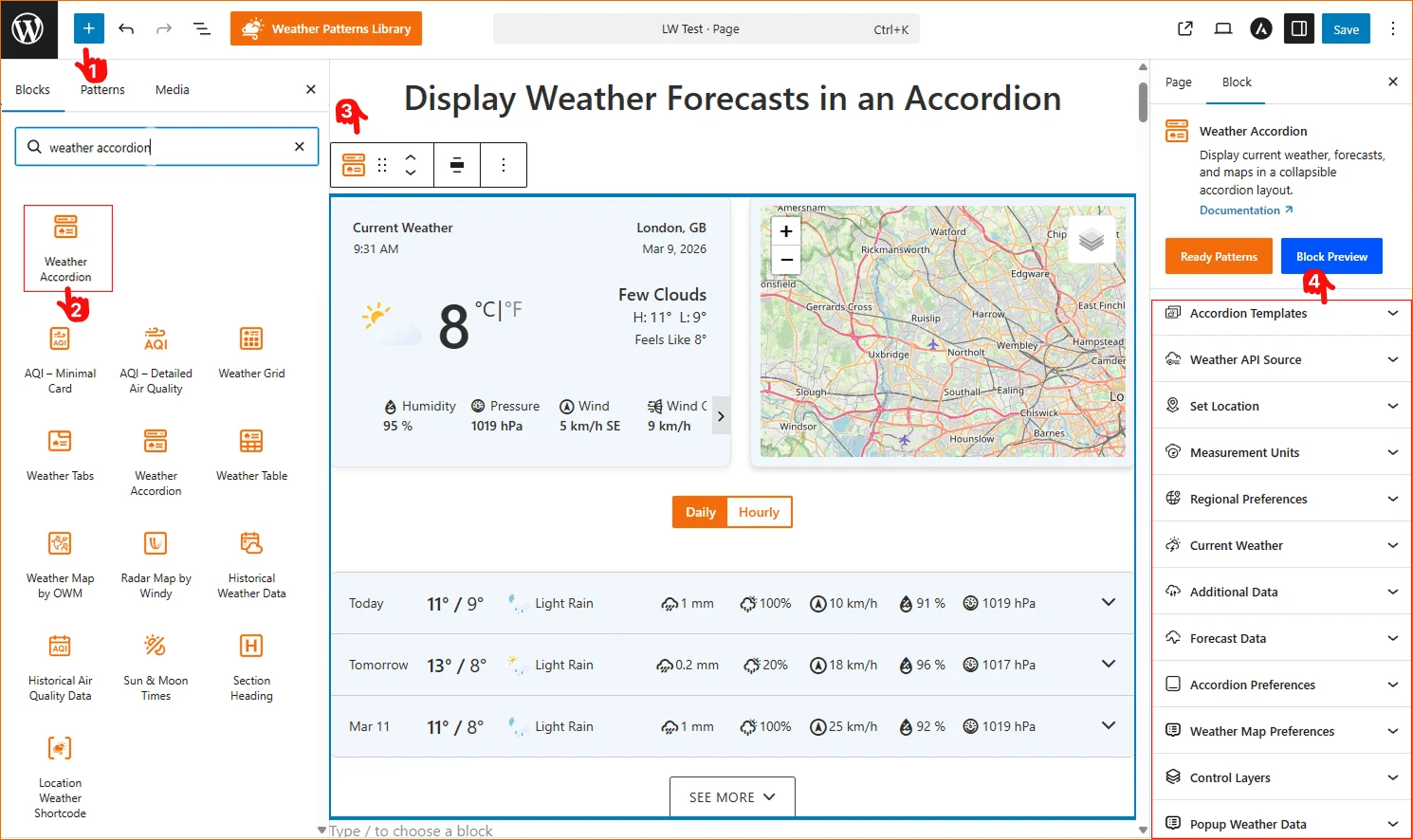
- Go to any WordPress page or post you’re editing and click the ‘+’ button to add a new block.
- Search for “Weather Accordion” or find it under “Location Weather.”
- Click it to add it to your page and pick a style from four different templates.
- Find the dedicated panels to customize as you wish.
Step 4: Customize and Publish
Now, it’s time to customize the accordion block as you wish. Simply click any panel or element to open the customization panel.
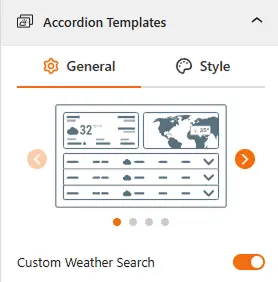
- To choose your desired Accordion Templates, just slide, choose one from the 4 stylish layouts, and add a style to it as you want.
- Moreover, you can enable a custom weather search bar if needed.
- Set your location, forecast type, and measurement units
- Configure the data metrics you want to show or hide, such as Current Weather, Additional Data, and Weather Map
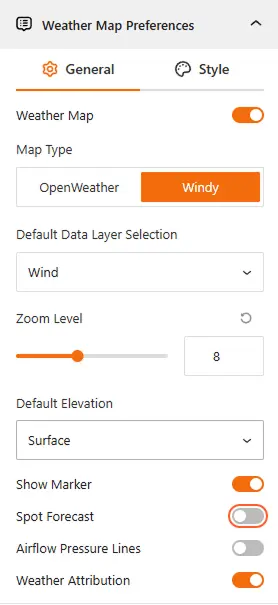
- Customize the Accordion styles from the Accordion Preference panel. You can easily set Default First Open, Multiple Open, Items per Page, and the Load More button from here.
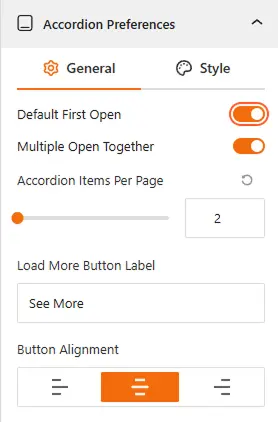
✅ Pro Tip: Keep in mind to set the Default First Open, Multiple Open, Toggle Icons, Titles, and Items per Page for the best UX.
- Finally, you can easily style content, toggle icons, borders, background, and additional data from the Advanced Style Settings
Once you’ve done your customization, Preview and click Publish / Update.
Your Weather Accordion is now live—interactive, clean, and user-friendly!
Let’s see a live demo of how the weather accordion will be displayed on your WordPress website.
Final Words
Displaying weather forecasts in long tables or scattered layouts can make your pages cluttered and hard to navigate. Using the Weather Accordion helps to organize current weather, forecasts, and maps into clean, collapsible sections that keep your content compact and user-friendly.
So, why wait? Download Location Weather today, start showcasing interactive weather data Accordion on your WordPress site in minutes — no coding required.


Leave a Reply